QR Code powered by GS1 – quick start guide
This is a short, practical overview to help you get started with QR Codes powered by GS1.
Follow the steps below for how to download your QR Code, place it on your packaging and have confidence it will scan reliably.
Back to next generation barcodesQR Codes powered by GS1 enable consumers to be connected to a webpage by scanning the QR Code on your pack. This makes it easier to share things like ingredients, traceability information, promotions, product information, or your brand story.
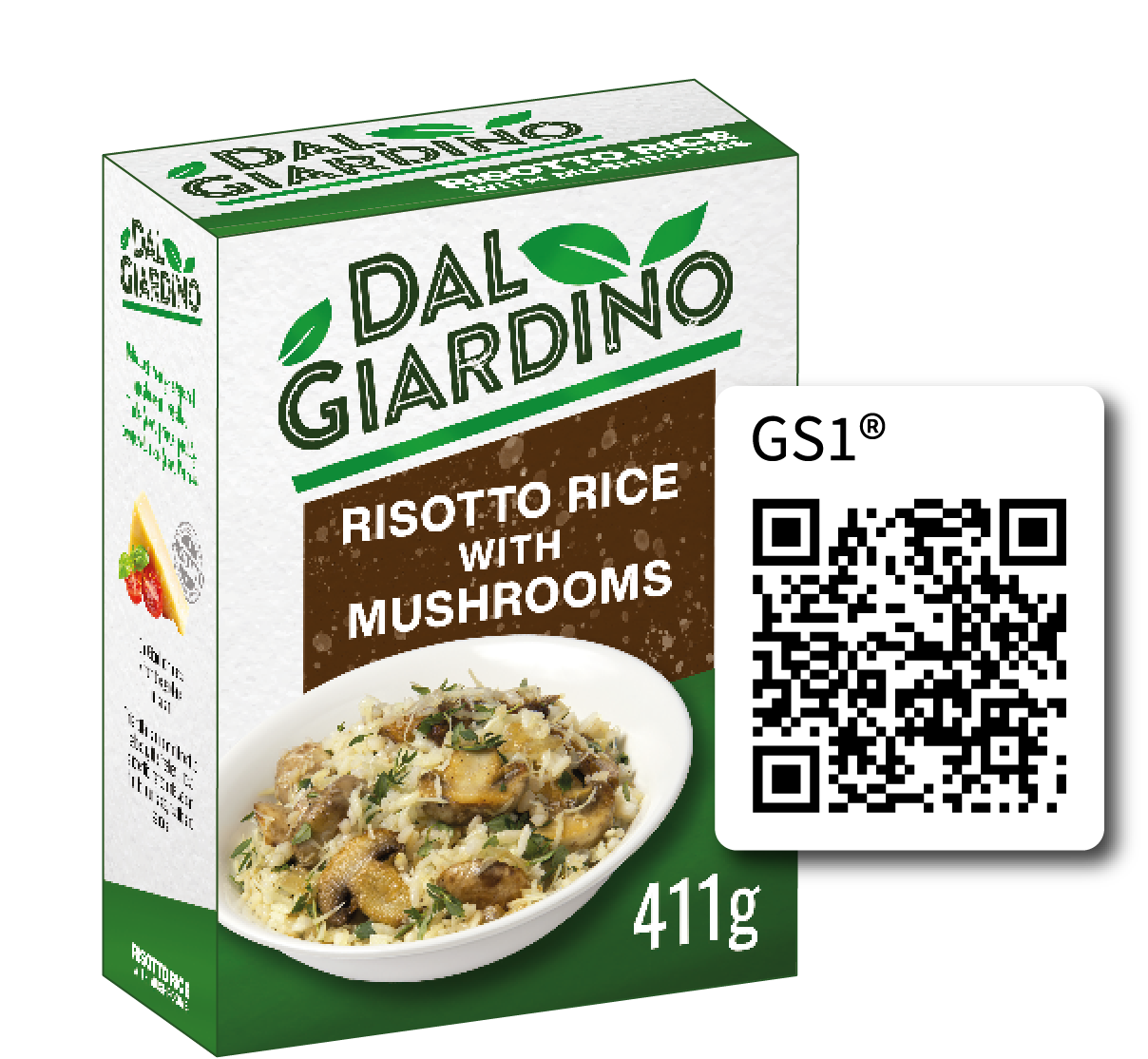
Scan the QR Code for an example.
1. Download a QR Code powered by GS1
Downloading your own QR Code powered by GS1 is easy in the MyGS1 member portal! Follow the simple steps below:
- Login to the MyGS1 member portal or sign up to license barcodes
- Assign a barcode number to your product in MyGS1*
- Choose one of the QR Code layout options (horizontal or vertical)
- Set up your Digital Link - this is where consumers will land when they scan your QR Code
- Download your barcode graphic and you're good to go!
*You'll need to be on the latest version of MyGS1 to download QR Codes powered by GS1.
During the global transition to 2D barcodes, you'll need to use a 2D barcode and a traditional linear barcode on your packaging so that you can be sure that all your trading partners can scan your product.
Choosing your weblink
When setting up your Digital Link, you can chose between using your own internet domain or using the global GS1 domain.
Using the GS1 domain (also known as the GS1 Resolver or redirect), allows you to easily update where consumers are redirected to in your MyGS1 portal without the need to reprint your QR Code. If you'd like to use your own domain, you will need to talk with your webmaster about setting that up for you.
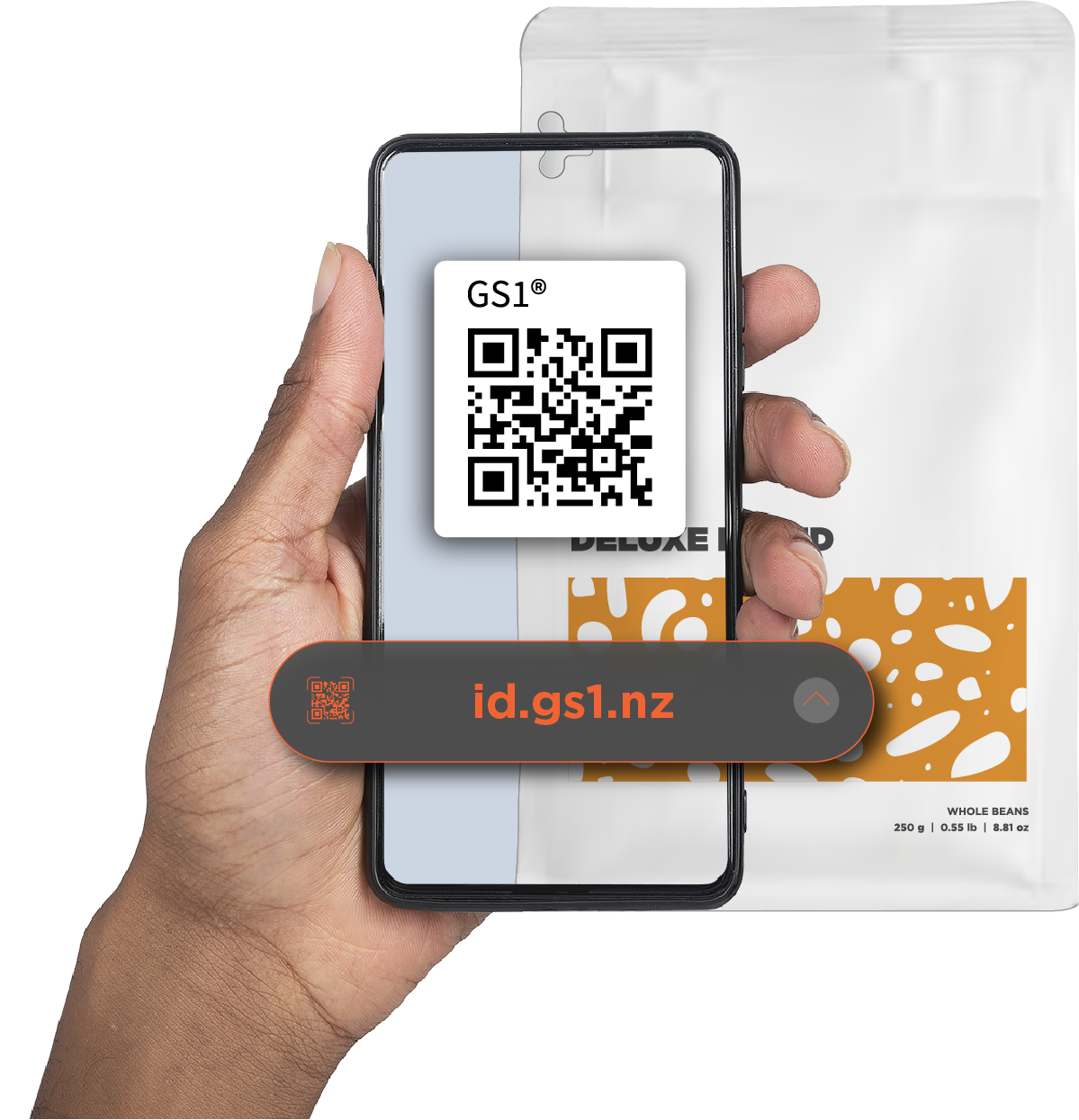
GS1 domain
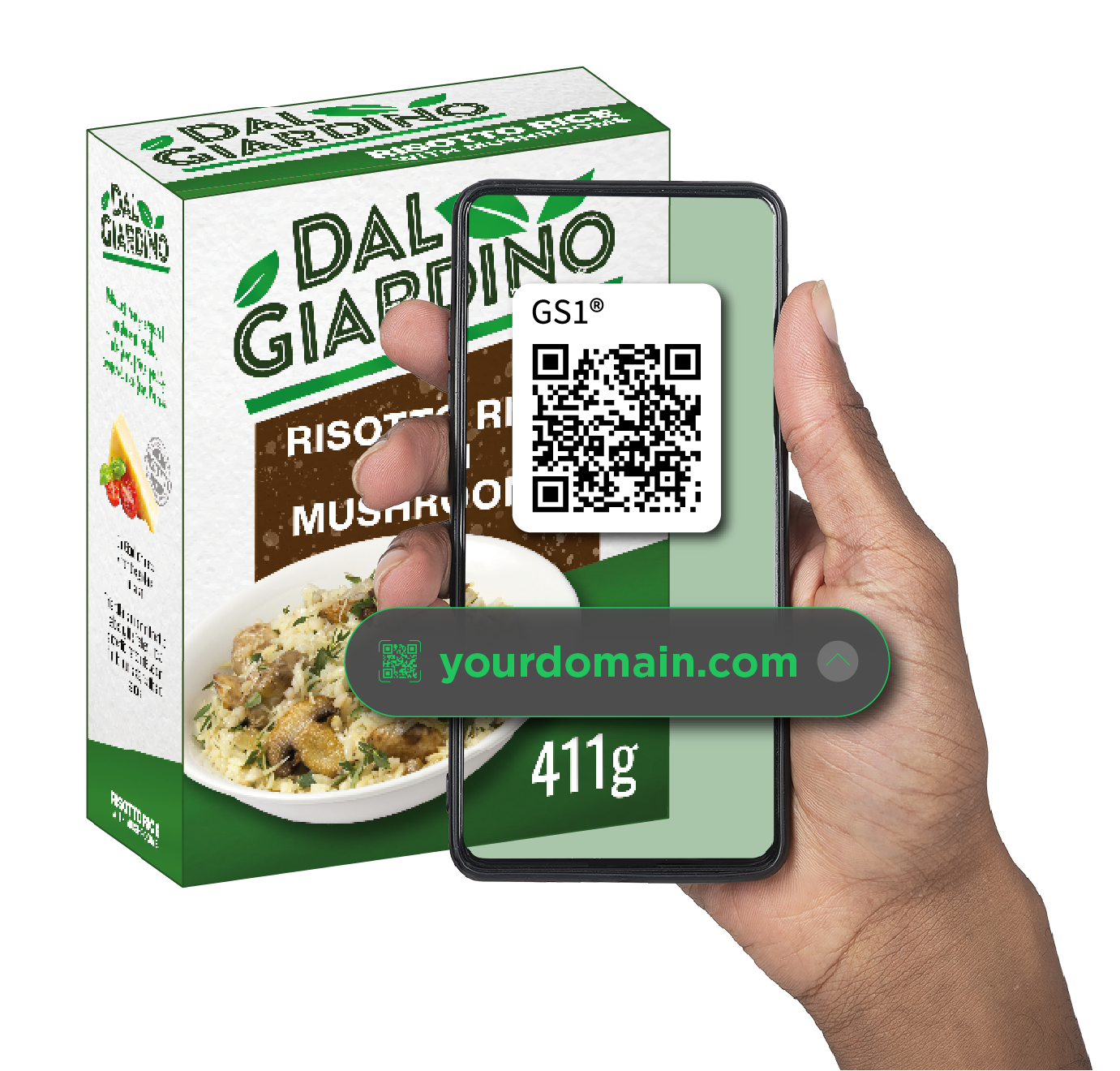
Your own domain
2. Adding your 2D barcode and linear barcode to packaging
Size
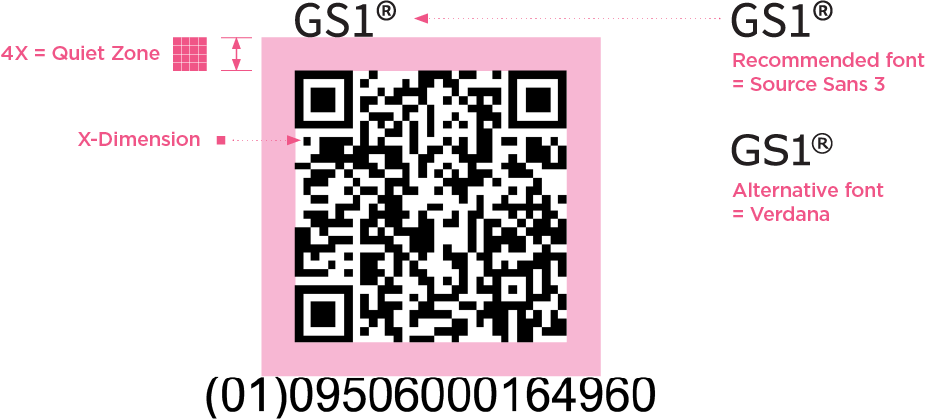
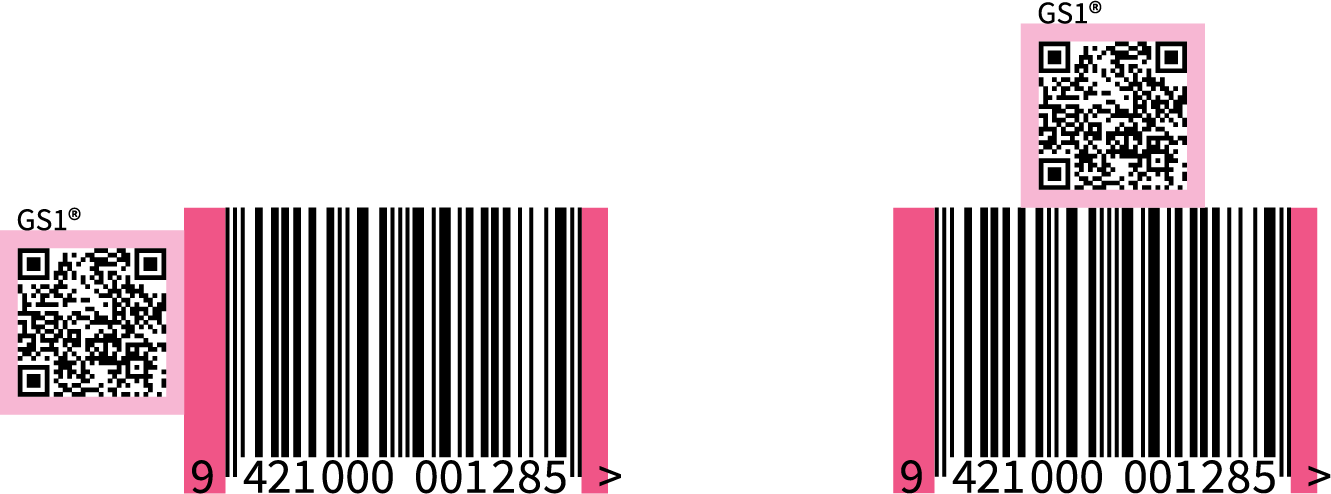
Refer to the size charts for the required sizes for each. As shown in the diagram below, the x-dimension is the size of the smallest square in your QR Code. The x-dimension for your traditional linear EAN-13 barcode is the width of the thinnest vertical line.
If you've got a limited amount of space on the pack, you can reduce the size of your barcodes. Refer to the size charts for guidance on minimum sizes.
Quiet zone
The quiet zone refers to the 'clear space' needed around a barcode. QR Codes require a quiet zone on all four sides. EAN-13 barcodes have a specified left and right quiet zone.
Make sure you've left enough space between your QR Code and your EAN-13. Refer to the size charts for the required quiet zones for each.
Size charts
QR Code powered by GS1
| Min x-dim (mm) | Tar x-dim (mm) | Max x-dim (mm) | Quiet zones |
|---|---|---|---|
| 0.396 | 0.495 | 0.990 | 4x on all four sides |
EAN-13
| Magnification | X-dimension | Width | Min bar height (of the shortest bars) | Left quiet zone | Right quiet zone |
|---|---|---|---|---|---|
| 100% | 0.33 | 31.35 | 22.85 | 3.63 | 2.31 |
| 95% | 0.31 | 29.78 | 21.71 | 3.45 | 2.19 |
| 90% | 0.30 | 28.22 | 20.57 | 3.27 | 2.08 |
| 85% | 0.28 | 26.65 | 19.42 | 3.09 | 1.96 |
| 80% | 0.26 | 25.08 | 18.28 | 2.90 | 1.85 |
Distance
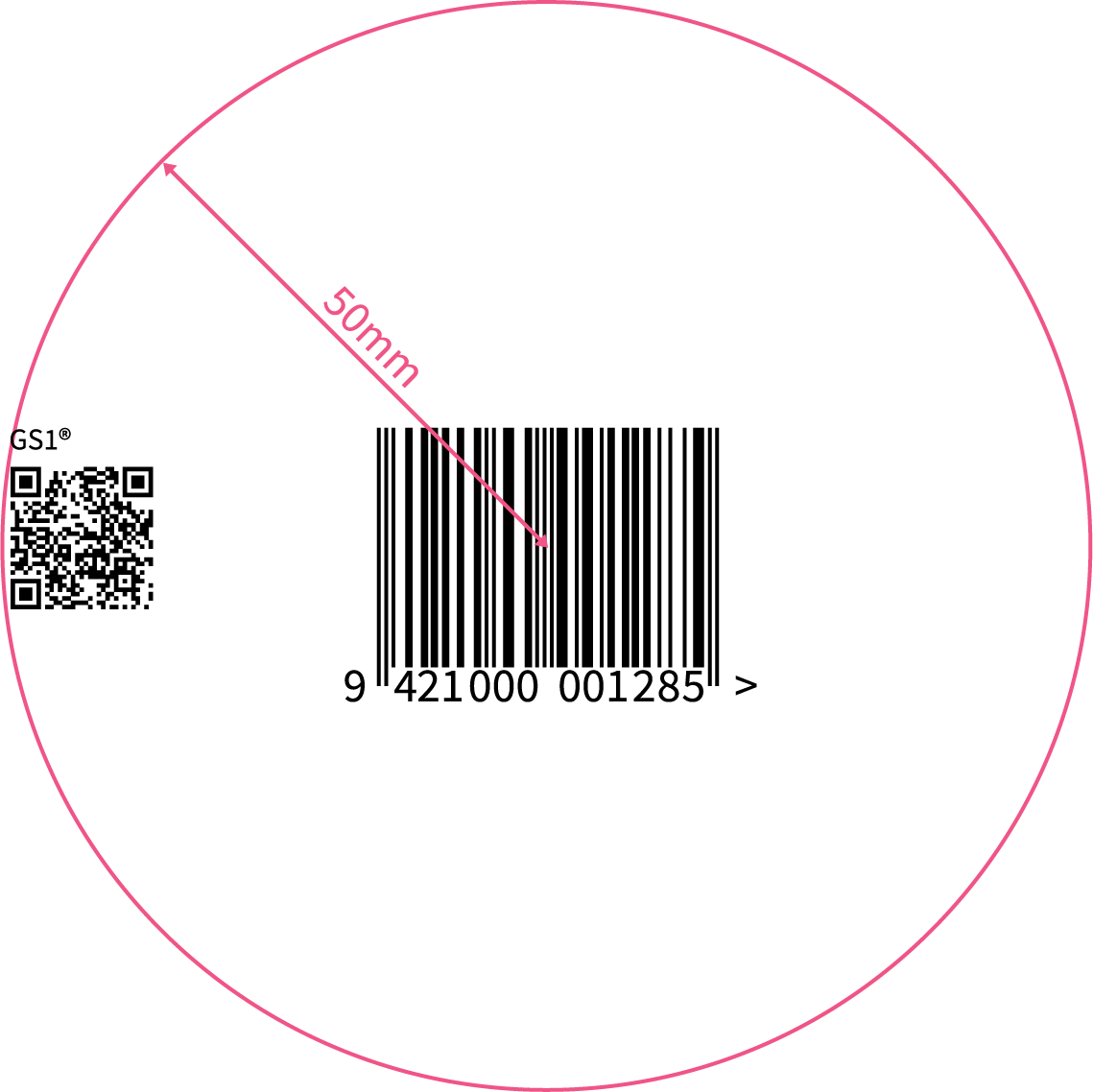
Your QR Code powered by GS1 should be placed within 50mm of the centre of your EAN-13. Testing has shown that this distance prevents the product being double-scanned at a point-of-sale.
Colour
We recommend following the colour requirements for EAN-13 barcodes.
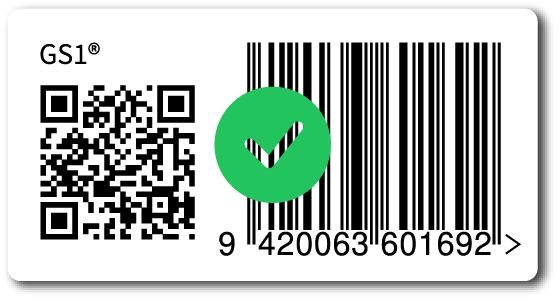
Use dark colours on a light background. We suggest black with a white background.
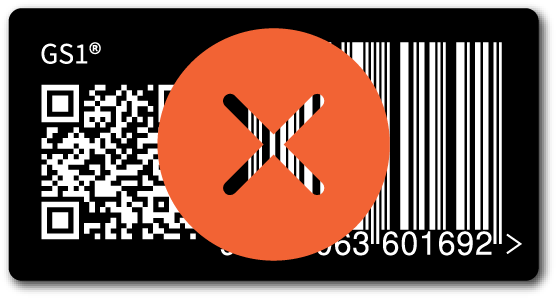
Avoid reversing the colours (inverting the light and dark modules). We don't recommend this as traditional scanners read the darker colour.
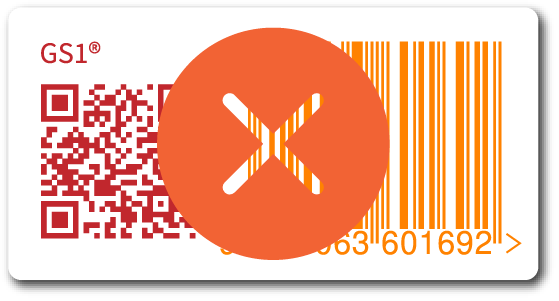
Avoid red or orange in your barcode, many scanners use a red light and won't pick these colours up.
3. Getting your barcode verified
Verification gives confidence your barcodes meet the GS1 standard and will scan correctly at point-of-sale anywhere, anytime. Barcode verification reports are also required by some retailers in order to list your product.
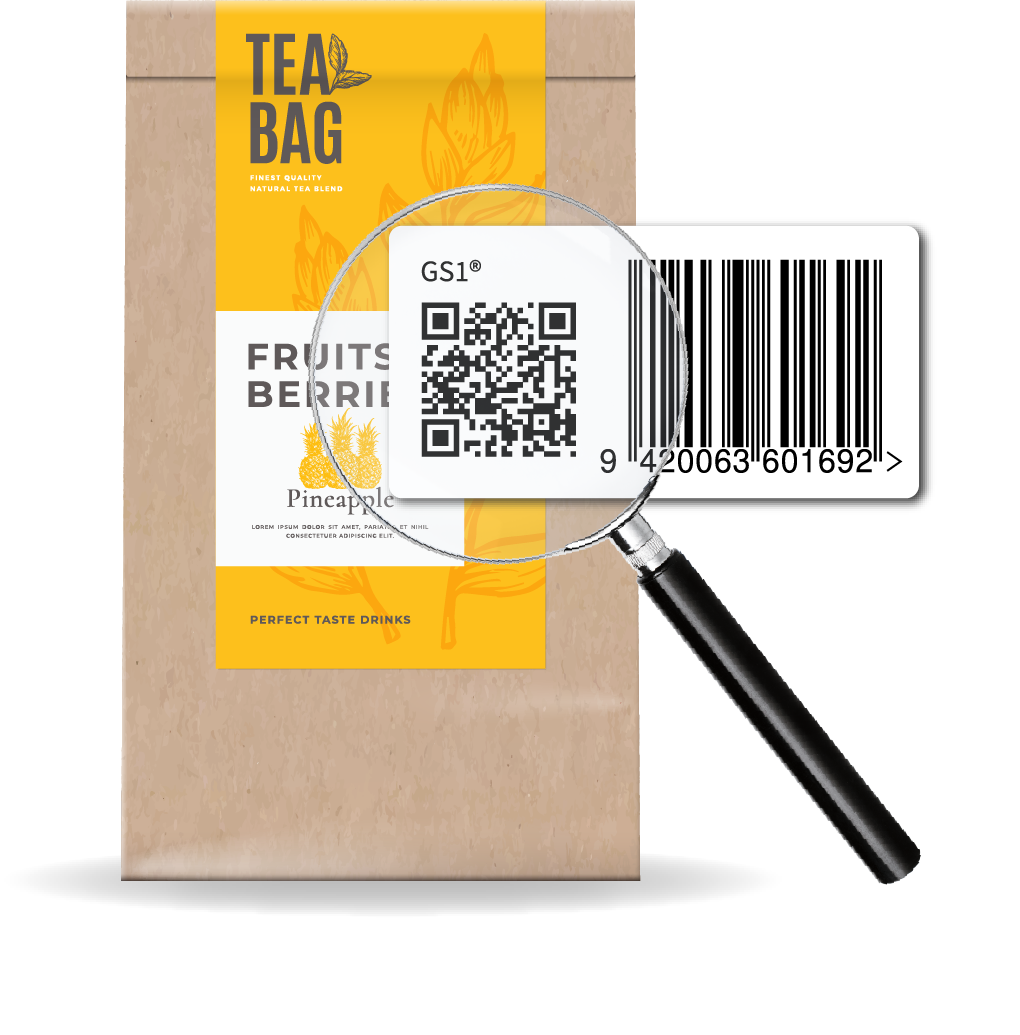
Free pre-check*
If it's your first time putting a QR Code powered by GS1 on your packaging, we'll check over your packaging artwork so any issues can be identified before you finalise your packaging. Just email the support team with your artwork and the subject line 'Free pre-check'.
Interim barcode verification
Once you've finalised your packaging, we recommend also doing an interim ('art work') verification before you print your packaging.
Barcode verification report
Using your sample product in its retail packaging, we'll check your barcode will scan - assessing the size, scale, colour, print quality, and reflective properties. Trusted by retailers to provide reassurance that your barcode will scan, many New Zealand retailers require a barcode verification report during the onboarding process.
*The free pre-check is available for your first product with a QR Code powered by GS1.
Checklist
- Check you're on the latest version of MyGS1
- Choose a URL and download your QR Code powered by GS1
- Work with your designer to place your barcode on your packaging
- Contact us to arrange your free pre-check or barcode verification.
Where to next?
Ready to go deeper? Explore more detailed resources or talk to our team about your rollout.